
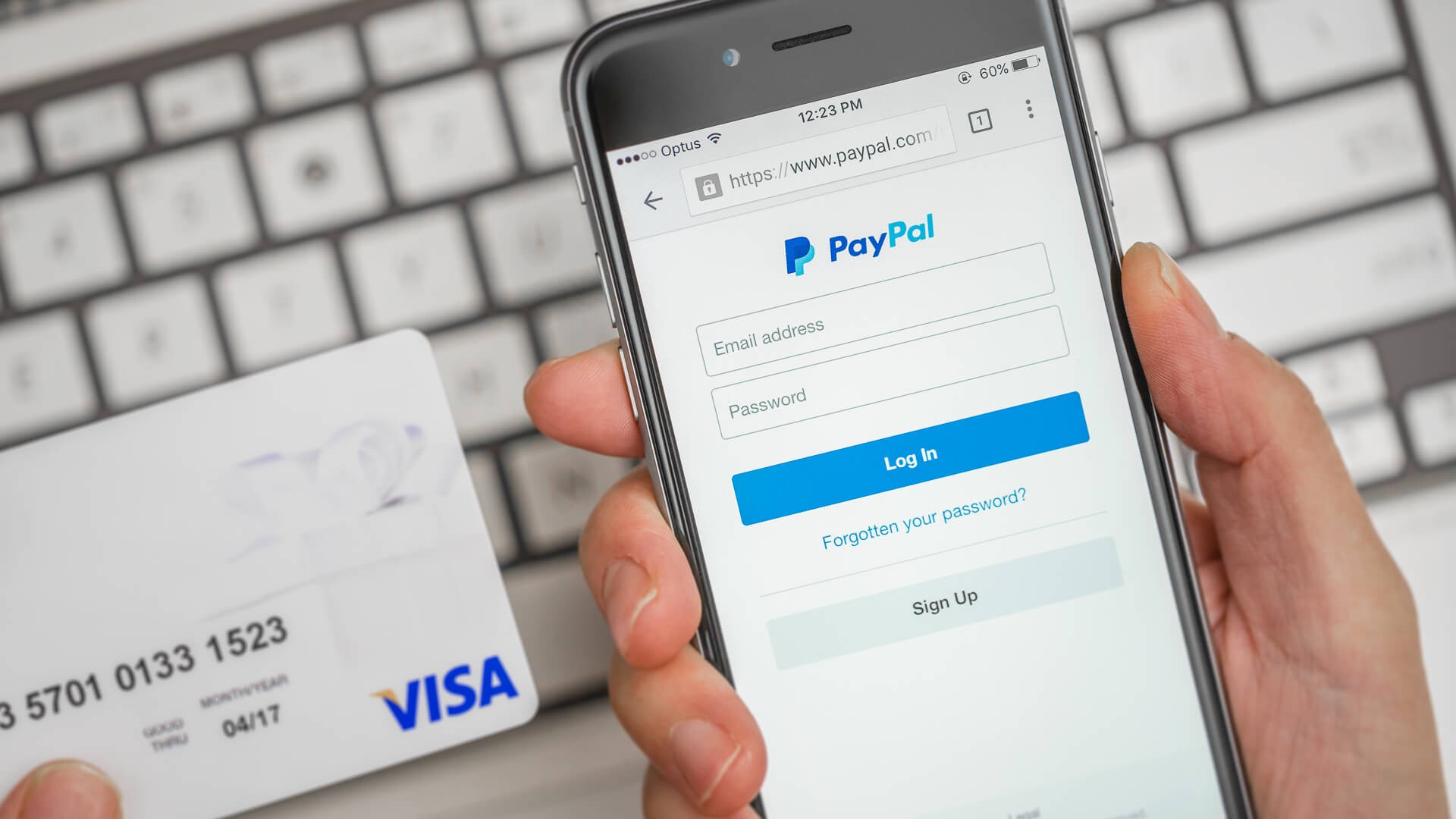
PayPal simplifies online transactions, bill splitting, and subscription management for millions of users. But before leveraging its convenience, you need to know how to add funds effectively. This guide details four straightforward methods – from bank transfers to cash deposits – to ensure your PayPal balance is ready when you are.
Why Add Funds to Your PayPal Balance?
Many users prefer maintaining a dedicated PayPal balance for several reasons:
- Seamless Shopping: Avoid repeatedly entering card details during online or in-app purchases.
- Budget Control: Load a specific amount to stay within spending limits.
- Security: Protect bank account details from frequent charges.
- Instant Payments: Easily split expenses with friends and family without delay.
While linked bank accounts and cards streamline purchases, direct funding grants greater control over your spending.
1. Bank Account Transfers: Reliable and Fee-Free
The most traditional approach involves transferring funds directly from your bank. This method is reliable and cost-effective but typically takes longer than other options.
Linking Your Bank:
- Log in to PayPal via their website.
- Navigate to the “Wallet” section (desktop) or “Banks and Cards” (mobile).
- Provide your routing and account numbers. PayPal may initiate two small test deposits for verification.
- Confirm the test deposits by entering them back into PayPal once they appear in your bank account.
Once linked, transferring funds is simple:
- Go to “Wallet” on your PayPal dashboard.
- Select “Transfer Money” then “Add Money From Your Bank.”
- Choose your linked account and enter the desired amount.
- Review and confirm the transaction.
Expect funds to appear in your PayPal account within 3-5 business days. This makes it ideal if you aren’t in a rush and want a no-fee solution.
2. Debit or Credit Card Transfers: Fast, But Consider Fees
For quicker access, load your PayPal balance with a debit or credit card. Funds often appear instantly, but be mindful of potential fees.
Linking Your Card:
- Log in to PayPal.
- Go to “Wallet.”
- Add your card details (number, expiry date, security code).
- Verify billing information to ensure it matches your card issuer’s records.
Transferring Funds:
- Open “Wallet” from your PayPal dashboard.
- Click “Transfer Money” then “Add money from your bank or debit card.”
- Select your card and enter the amount.
- Confirm the transaction.
Most debit card loads are immediate. Credit card transfers may incur cash advance fees depending on your provider, so consider using your card directly for purchases instead of pre-loading funds.
3. Cash Deposits at Retail Stores: For Those Without Banks
PayPal’s “Add Cash” service allows depositing physical money at participating retailers. This is useful if you don’t have a bank account or prefer cash transactions.
Participating Stores:
- Walmart
- CVS
- Walgreens
- 7-Eleven
- Dollar General
- Family Dollar
Availability varies by location, so check PayPal’s “Add Cash” options within your account or call ahead.
Making a Deposit:
- Log in to PayPal (app or website) and go to “Wallet.”
- Choose “Add Cash.” PayPal will show nearby stores or generate a barcode to scan.
- Hand your cash to the cashier and pay a service fee (usually up to $4.95).
- Funds typically appear in your PayPal account within minutes.
Keep your receipt for verification; contact PayPal Support if the deposit doesn’t appear promptly.
4. Mobile Check Deposit: Convert Paper to Digital
PayPal’s mobile check deposit feature lets you convert paper checks into digital funds without visiting a bank.
How to Use:
- Launch the PayPal app and select “Wallet.”
- Choose “Cash a Check” and follow the on-screen instructions to photograph both sides of the check.
- Confirm your funding method: immediate (fee applies) or standard (up to 10 days, free).
This service may not be universally available, and faster deposits incur a fee. Standard deposits take longer but are free.
Checking Your PayPal Balance
After funding your account, verify the transaction:
- Log in to PayPal (web or app).
- Check your main dashboard for the updated balance.
- Navigate to “Wallet” if needed.
- Review your transaction history for pending or processed deposits.
If your funds aren’t reflected after the standard waiting period, contact PayPal Support or your financial institution.
In conclusion, adding money to PayPal is adaptable to your needs. Whether you prioritize speed, cost-effectiveness, or cash transactions, one of these methods will streamline your online payments and financial management.